Windows, not message counts
Codex measures use over time windows. Each window has its own allowance and reset time:
- A five-hour window for short bursts of heavy work.
- A weekly window for your overall use across the week.
Which windows you get depends on your plan, and OpenAI has changed this more than once. At the time of writing, guides report that Plus has both a five-hour and a weekly window, while Pro plans have no five-hour window but still have a weekly one. OpenAI doesn’t publish exact allowances, so the reliable source is what Codex itself reports for your account.
How to check your usage
- In the Codex CLI: run
/status. It shows the windows on your plan, how much of each you’ve used, and when each resets. - On the web: the usage page in Codex settings at chatgpt.com/codex/settings/usage shows your limits, resets and any credits.
“Why do I only see a weekly limit?”
That’s expected on plans without a five-hour window. You still have a ceiling, it’s just measured over the week. It also means one heavy day can use a large share of the week, so the weekly percentage is the number worth watching.
Making the week last
- Check the weekly figure early in the week, not when you’re already close.
- Keep tasks focused. Smaller, well-scoped requests use less than broad “fix everything” runs.
- Mix your tools. If you also use Claude Code, you can move work between them as one plan fills up.
Watch it from your desktop with Byteframe
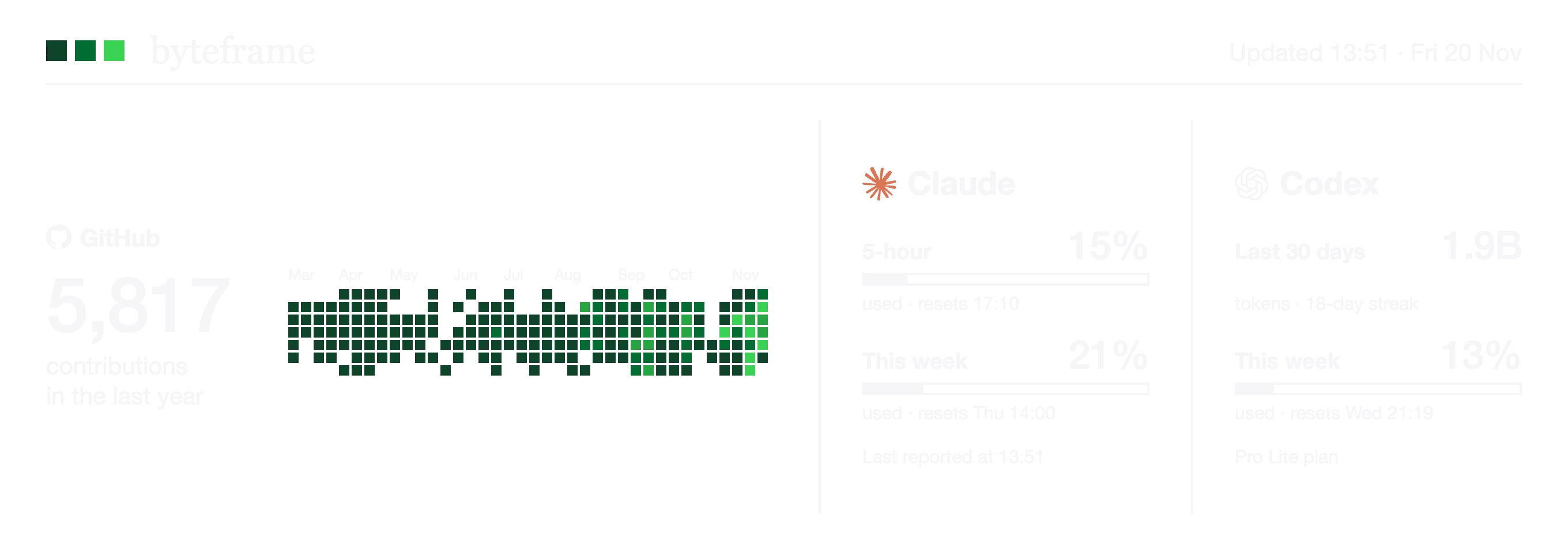
Byteframe’s free Mac app shows your Codex plan on a card on your desktop, in the same layout as every other AI plan:
- This week: how much of the weekly window you’ve used, and when it resets.
- The 5-hour window, if your plan has one.
- If it doesn’t, your tokens over the last 30 days and your daily streak in its place, so the card is never half empty.
Byteframe asks the Codex app on your Mac for these numbers, the same way /status does. It never reads your code or chats, never touches your login, and sends nothing anywhere.